

 Tracer
Before you begin
Make sure you have:- A HealOps account — you can create one at app.healops.ai/sign-up
- Access credentials for the tools you want to connect
- Permissions to create API keys
Enterprise integrations
Enterprise integrations are configured through the HealOps web app at app.healops.ai. Once connected, they are available to all users in your organization. Observability. HealOps reads your logs, metrics, traces, and alerts to build investigation hypotheses. Connect Grafana and Datadog. Infrastructure. HealOps maps your environment and dependencies across clouds and clusters. Connect AWS. Communication. HealOps delivers investigation reports where your team already works. Connect Slack, Discord, or Telegram.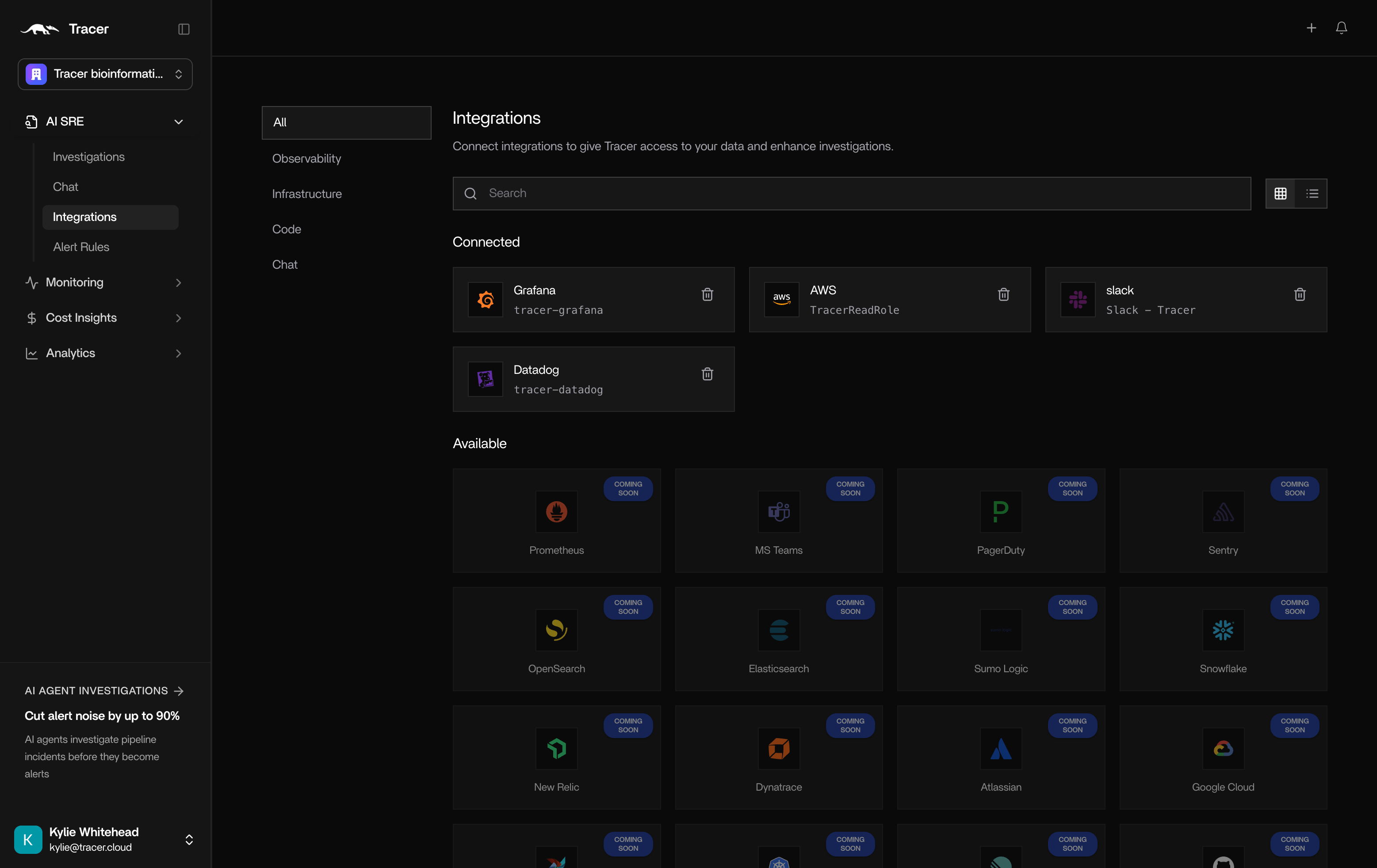
Configure enterprise integrations
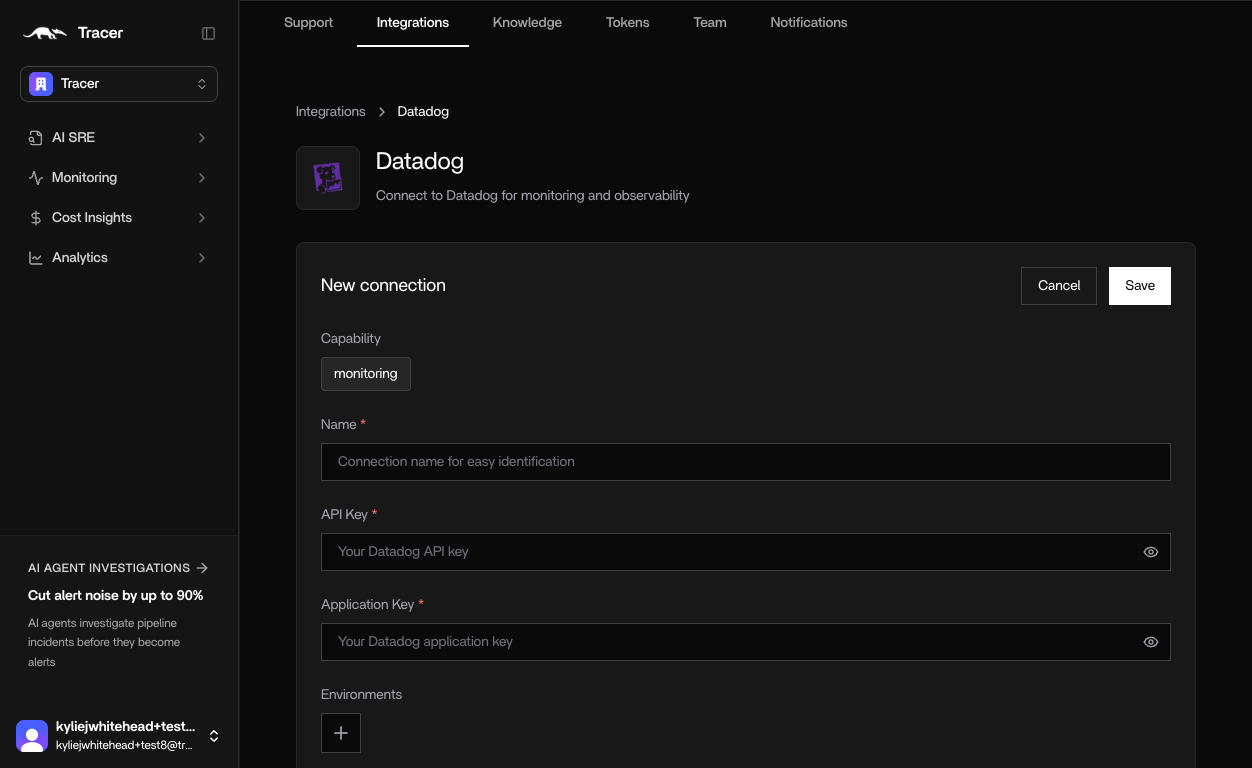
Each integration follows a simple, guided flow. Let’s look at Datadog as an example.- Name - Helps distinguish between different instances
- API Key - in Datadog, create a new API key and copy and paste into HealOps.
- Application Key - In Datadog, create a new Application Key and copy and paste into HealOps.
Local integrations
Local integrations are configured on the machine running HealOps — via the CLI setup wizard or environment variables. They give HealOps access to your databases, source control, error trackers, and workflow tools.Verify local integrations
After setup, confirm everything is working:Setup guides
- Connect integrations from the web app — step-by-step for the HealOps dashboard integration page
- CLI Integration Setup — step-by-step for local and on-prem CLI setup